
Attachments Tab
After completing the Overview Tab, users will navigate to the Attachments tab.
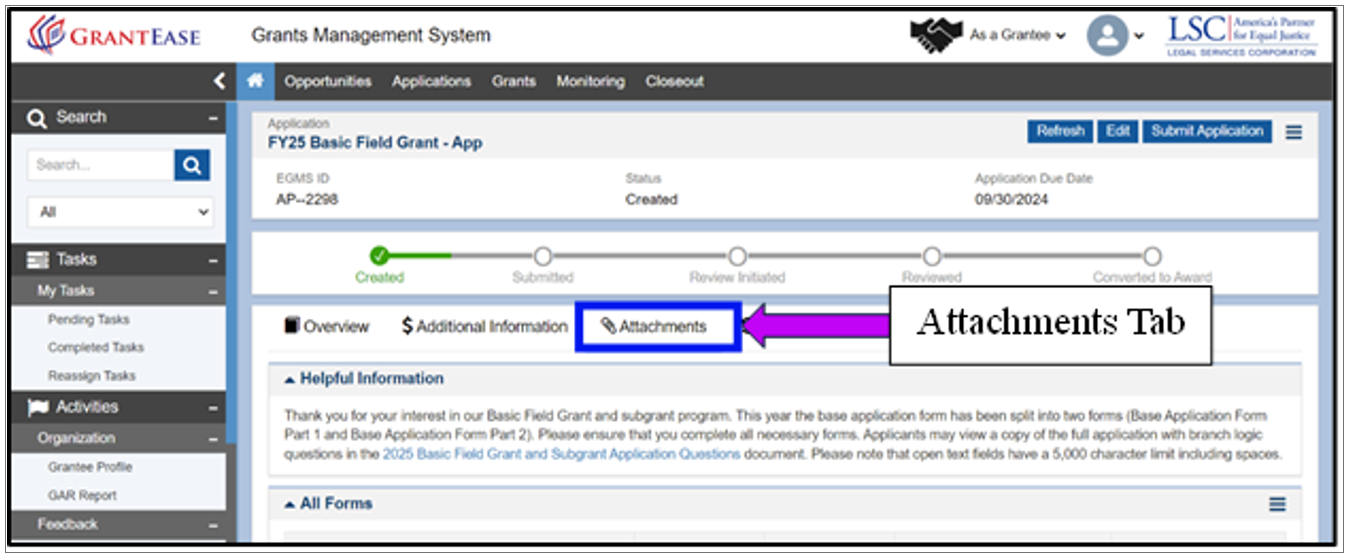
Figure 7: Image of the Attachments Tab of the Basic Field Application
Users will then navigate to the All Forms section of the page.
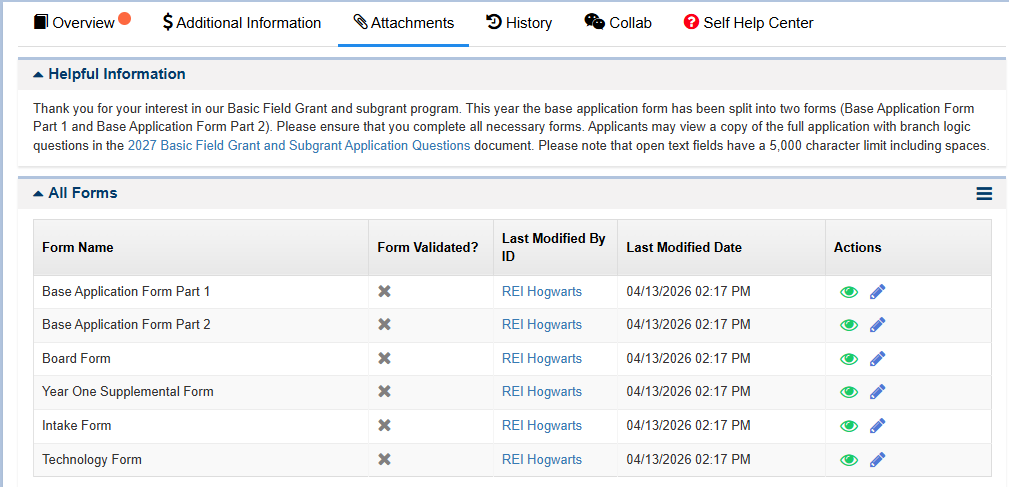
Figure 8: Image of the All Forms Table
All Forms Section
In the All Forms section, users will see a table with the following columns: Form Name, Mandatory, Form Validated, Last Modified By, Last Modified Date, and Actions.
This table includes forms such as the Base Application Form (Parts 1 and 2), Board Form, Year One Supplemental Form, Intake Form, Technology Form, and—if applicable—the Native American Service Area Form and Agricultural Workers Service Area Form.
To begin filling out a form, select the blue pencil icon next to the desired form.
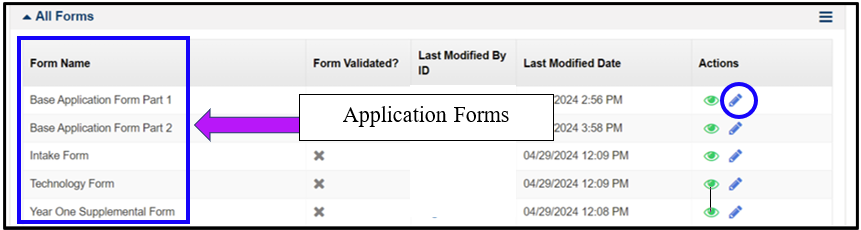
Figure 9: Image of the All Forms Table
Form Logic
Some questions may not apply to every applicant. As a result, many questions include logic that changes based on responses.
For example, answering “Yes” or “No” may trigger additional questions or hide others. In some cases, users may also be required to complete an information table.
Hovering over the blue information (i) icons provides additional guidance for each question.