
Applicants who are applying to service areas in competition must complete the Year One Supplemental Form. This form will not appear in renewal applications.
Locating the Year One Supplemental Form
To locate the Year One Supplemental Form, navigate back to the All Forms section on the Basic Field Grant Application Attachments tab.
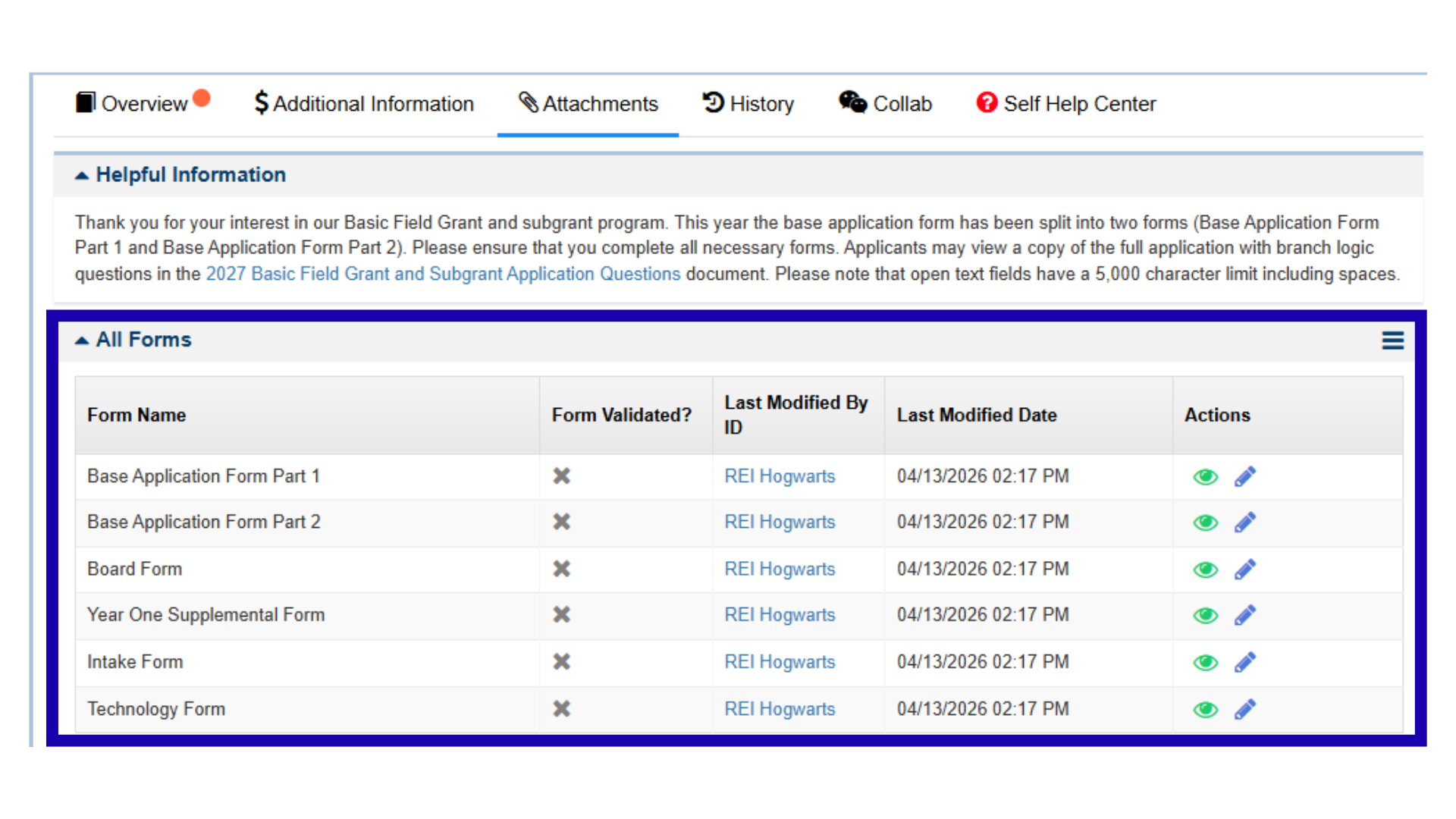
Figure 31: Image of the All Forms Section
Once in the all forms section, users should select the blue pencil icon to begin the Year One Supplemental form.
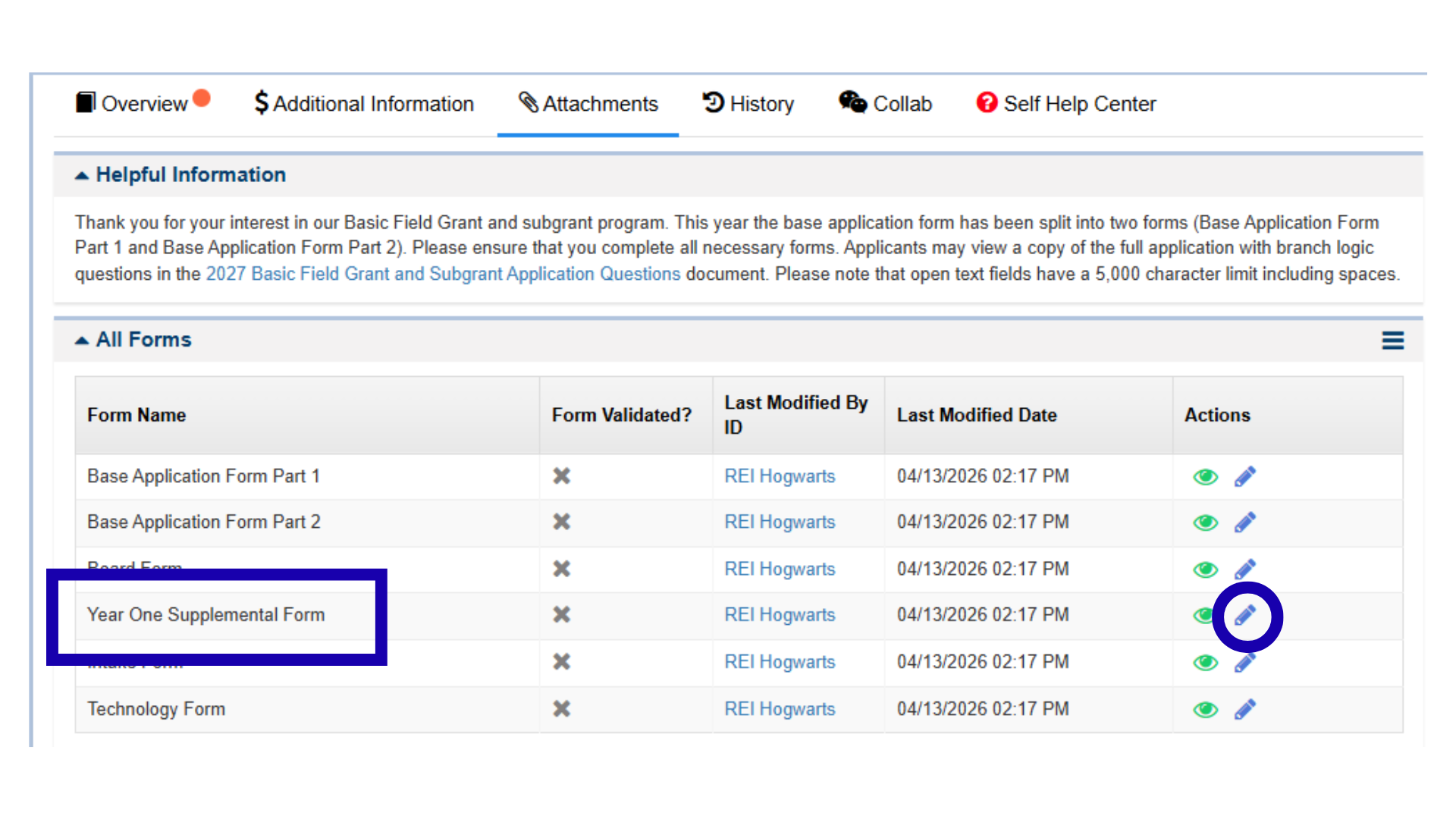
Figure 32: Image of Navigating to the Year One Supplemental Form
Information Table Responses
As with the Base Application form, users must complete all the required items that have a red asterisk (*).
Once users complete all required questions in the Year One Supplemental Form, they should select the Save button. They will see a message that the form is successfully saved.
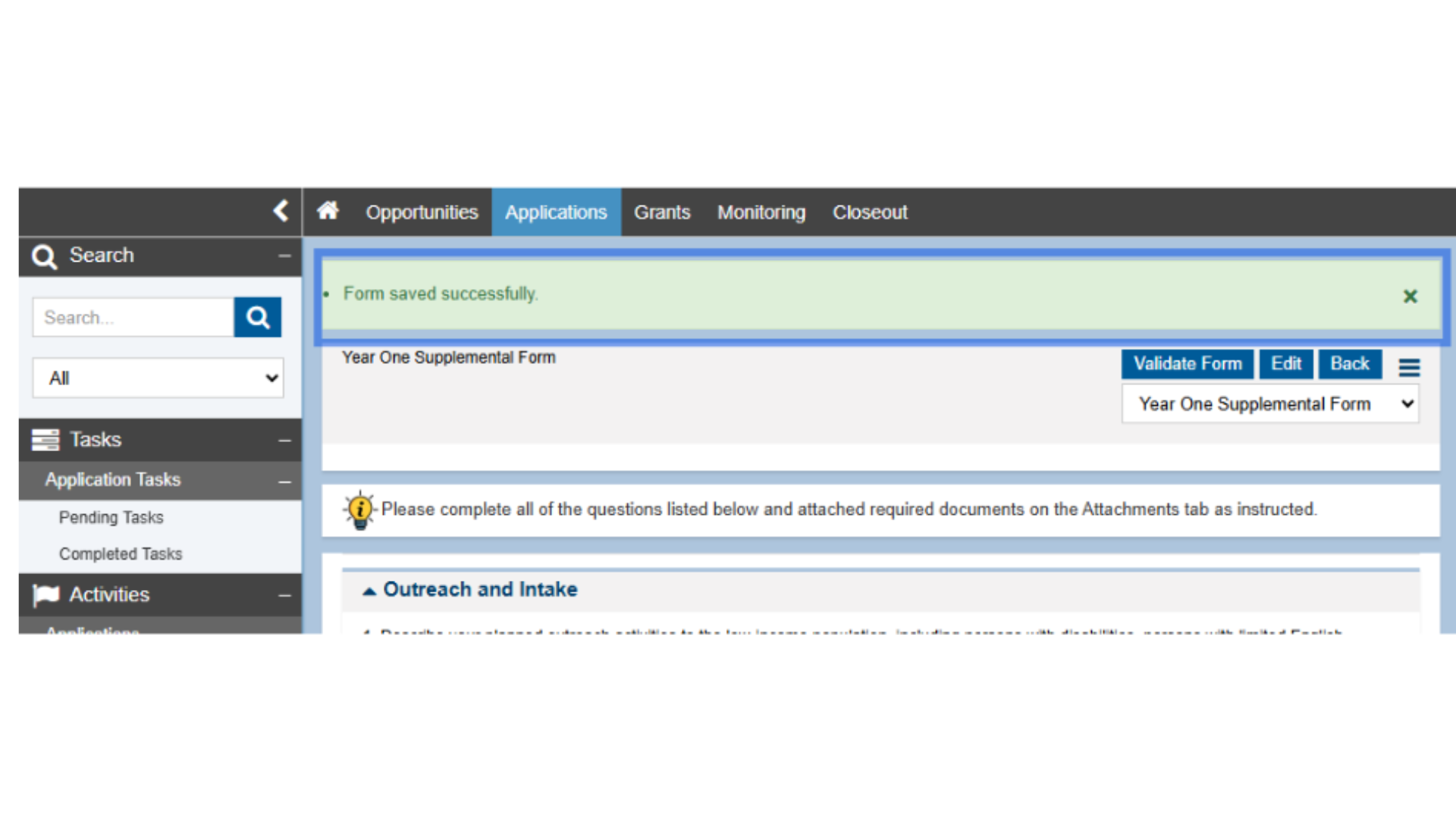
Figure 36: Image of the Year One Supplemental Form Successfully Saved Message
Next, users should select the Validate Form button on the top right-hand side of the screen. This is a feature in GrantEase that will allow users to see which questions have been skipped or are incomplete. Users will either be prompted to rectify any errors that appear, or they will receive confirmation that the form is validated.
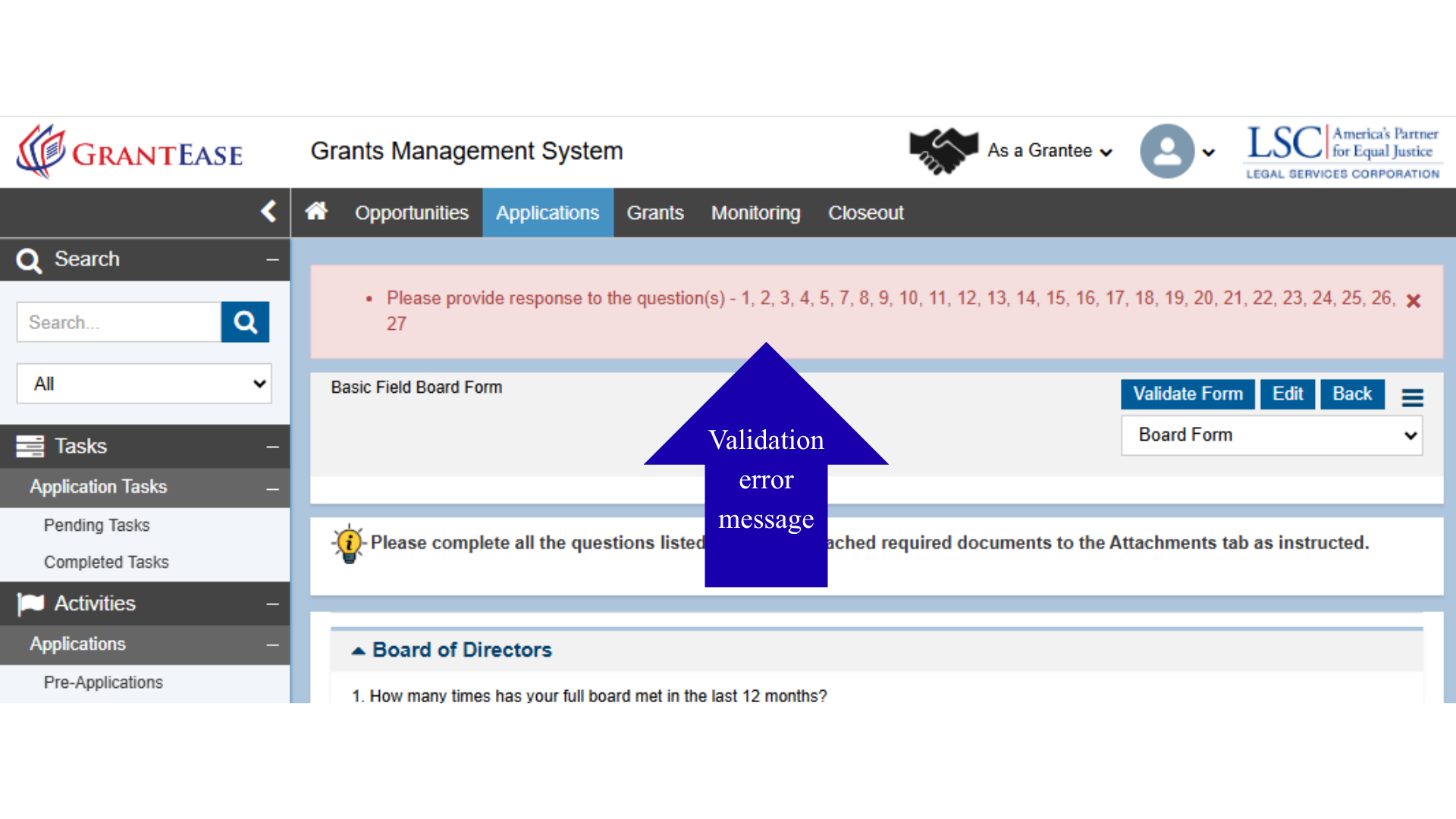
Figure 37: Image of the Year One Supplemental Form Validation Error Message
After validating the Year One Supplemental form, users may select the Back button to navigate to the next form, to navigate to the next form, or use the drop-down menu in the top right-hand corner of the screen to select another form.

Figure 38: Image of Navigating to the All Forms Table Using the Back Button or Dropdown Menu