
Locating the Board Form
To locate the Year One Supplemental Form, navigate back to the All Forms section on the Basic Field Grant Application Attachments tab.
Once in the All Forms section, users should select the blue pencil icon to begin the Board form.
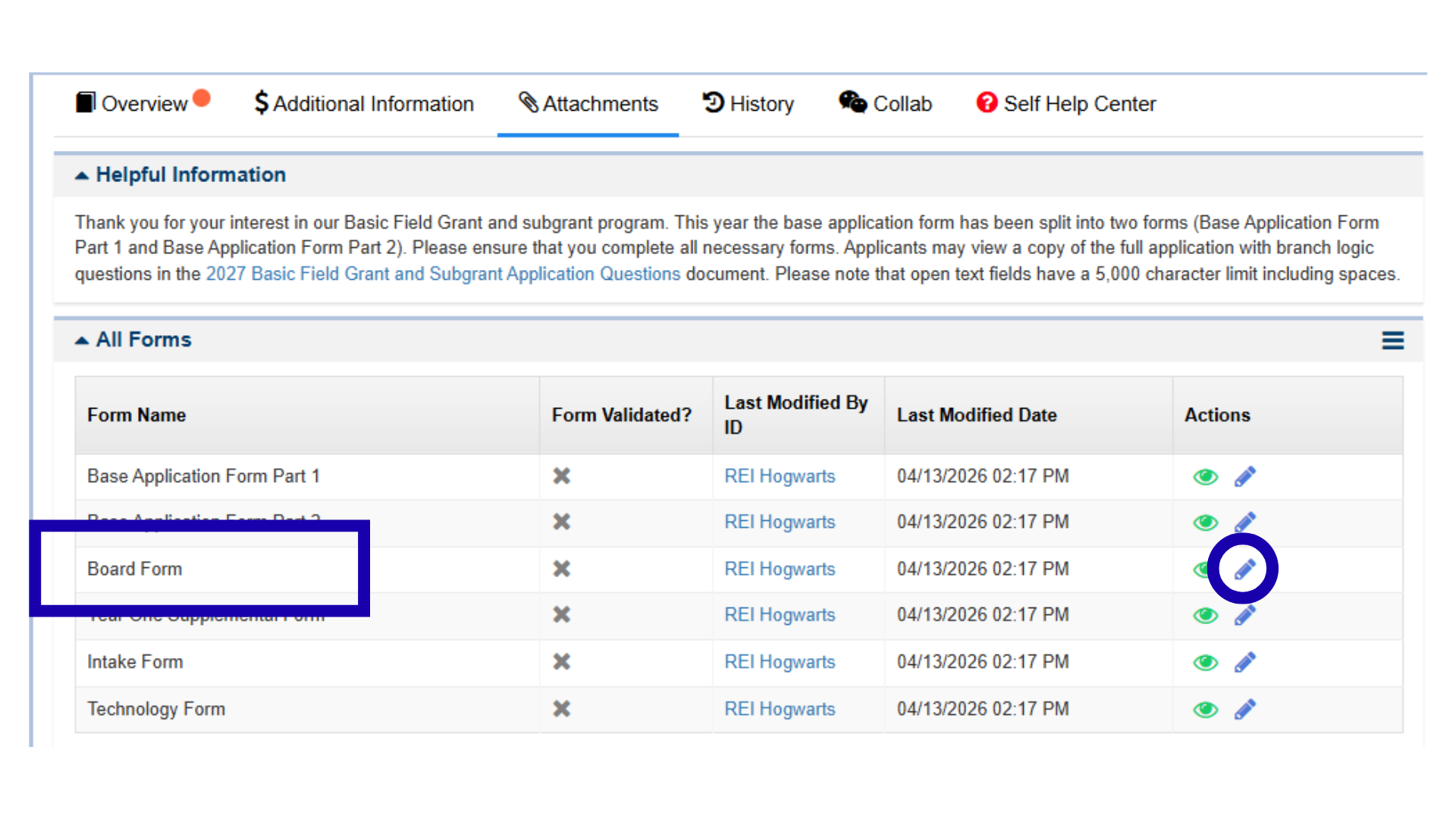
Figure 31.1: Navigating to the Board Form in the All Forms section.
Information Table Responses
As with the Base Application form, users must complete all the required items that have a red asterisk(*).
The responses to some questions require users to complete an information table. For example, if users indicate that one of their Board Members has overlapped with partner legal service providers’ Board Members, then users must include information about the overlap in the subsequent table.
Select the New button, and enter in the overlap details, as necessary, followed by selecting the Save button. The same process is applicable to the question(s) regarding nepotism.
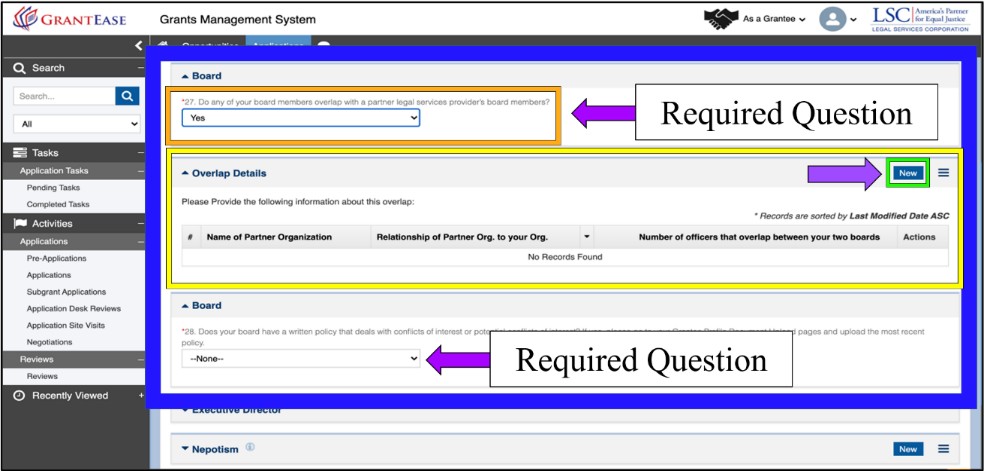
Figure 31.2: Image of the Overlap Information Table Question
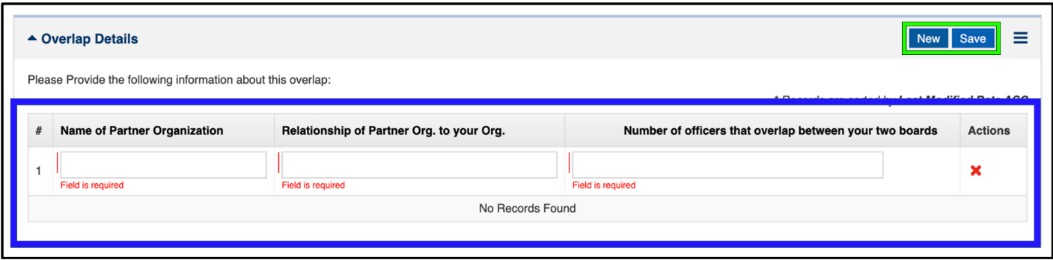
Figure 31.3: Image of the Overlap Table Question Data Entry Boxes
Once users complete all required questions in the Year One Supplemental Form, they should select the Save button. They will see a message that the forms is successfully saved.
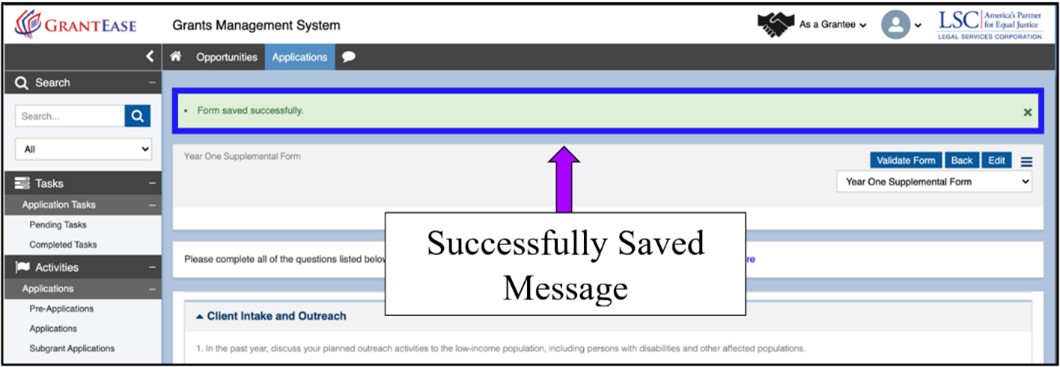
Figure 31.4: Image of the Year One Supplemental Form Successfully Saved Message
Next, users should select the Validate Form button on the top right-hand side of the screen. This is a feature in GrantEase that will allow users to see which questions have been skipped or are incomplete. Users will either be prompted to rectify any errors that appear, or they will receive confirmation that the form is validated.
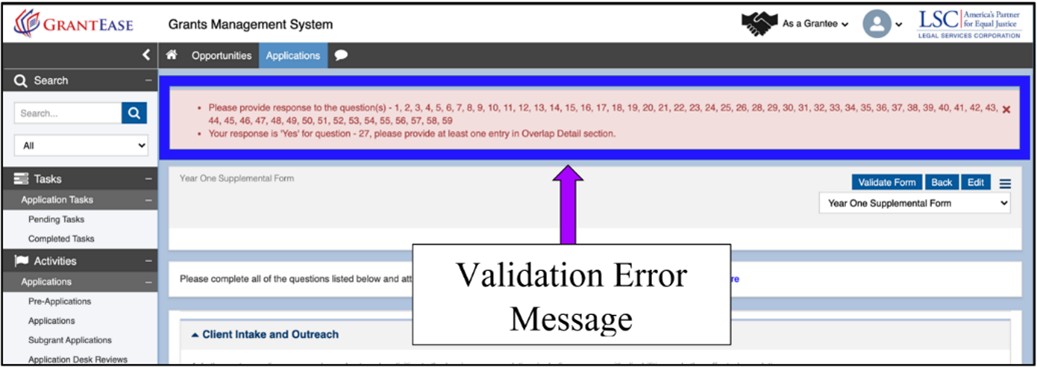
Figure 31.5: Image of the Board Form Validation Error Message
After validating the Board form, users may select the Back button to navigate to the next form, or users may select the next form from the drop-down menu in the top right-hand corner of the screen and be taken to another form.
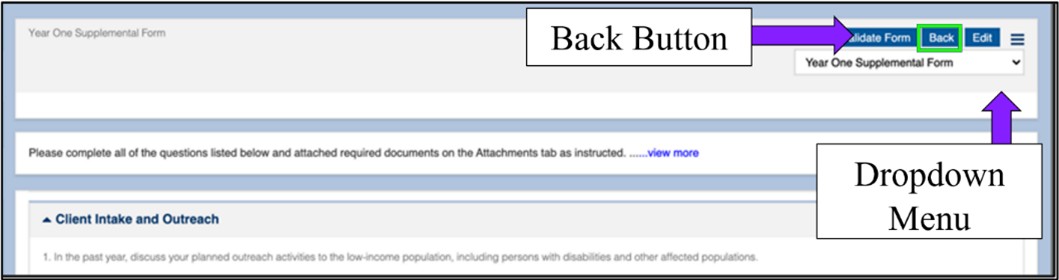
Figure 31.6: Image of Navigating to the All Forms Table Using the Back Button or Dropdown Menu